|

Opening Slide
|
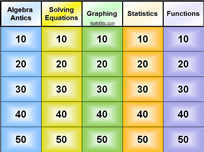
Question Board
|
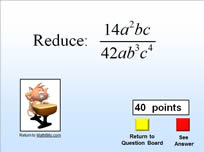
Sample Question Slide
|
|
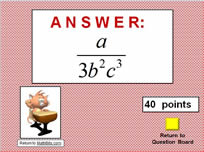
Sample Answer Slide
|
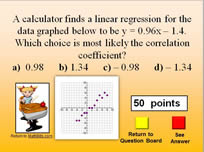
Sample Question Slide
|
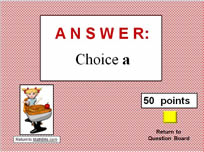
Sample Answer Slide
|
|
Part 2 Game:
This activity was designed for reviewing the topics of Exponents, Quadratic Equations, Inequalities,
Systems, and Other Stuff with Algebra 1 level students.
Algebra 1
Sample slide shots ... |

Opening Slide
|
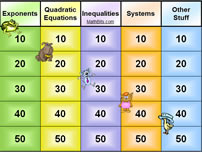
Question Board
|
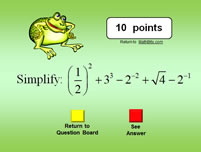
Sample Question Slide
|
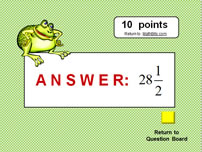
Sample Answer Slide
|
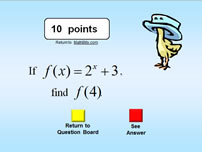
Sample Question Slide
|
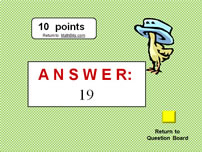
Sample Answer Slide
|
Possible Ways to Use These Activities in the Classroom:
Projected in the Classroom:
1. "Jeopardy" style
class game:
•
Have a classroom jeopardy-style game. Split the class in half to form two teams. Students choose topics and all students must show the work for that problem. As teams give answers, to secure points, the other team can challenge if the answer is incorrect. Have different students choose questions to keep everyone involved.
• Simply use the topics for review, where students solve the problems on their papers. Students can keep track of how many points are earned by their individual correct answers.
• If your class is relatively small (under 20)
you could form 3 or 4 teams and play in a Jeopardy Game style. I
have found that competitive teams do not work as well (as I would
like) with "larger" groups -- too many groups (or too large groups)
can prevent all students from staying actively involved.
2. Class Activity: Set an activity "number" ("This activity will require that we
answer enough questions to achieve a total point score of 500 points.")
Let volunteers choose questions. The task is for each student
(working alone or in groups) to show HOW to solve each question.
None of the work needed to arrive at the final answer is shown on the
slides, for this purpose.
3. Quiz: Pick the
questions that you wish to show for a quiz. Do not click on the
"See answer" button. Show only your questions.
Answers can be shown after the quiz is completed.
4. Modified BINGO: (generic Bingo Card)
• Have students write the topic titles at the top of their bingo card. The teachers rolls a die (or use the graphing calculator) to get a random number (1-5) across the top, and a second number (1-5) down that column. Students solve that problem and put the answer in that square. When a BINGO occurs, check student's card for correct answers. If a winner is achieved, that student (and all others) keep playing on the same card, as a second win may also be possible.
• Have
students solve all of the problems, placing their answers (in pen) on
a bingo style card. When the questions are complete, go through
the answers so that students can correct their cards. The
teacher picks a
winning Bingo line (for example, diagonal upper left to lower right)
and awards prizes to any students whose answers on that line are
correct.
5. Assign as Independent
Review: Students can work independently using
the On-Line activity for additional practice.
Used in a Computer Lab or Laptop
Setting:
1. Lab Activity: Set
an activity "number" ("This activity will require that you answer
enough questions to achieve a total point score of 500 points.")
Let students choose their own questions. The task is for each
student (working alone or in a group) to show HOW to solve each
question. None of the work needed to arrive at the final answer
is shown on the slides, for this purpose.
2. Lab Quiz: Pick
the questions that you wish to use for the quiz. Put the
question numbers (example "Blue 20") on a worksheet with sufficient
work space next to each question for the work to be shown. The task is
for each student, working alone, to show HOW to solve each question.
Yes, they can look at the answer -- but as we all know, the "good
stuff" is in the trip TO the answer.
3. Assign as Independent
Review: Students can work independently using
PowerPoint or the On-Line activity for additional practice.
|